Blog

Let's make SCORM teaching materials.

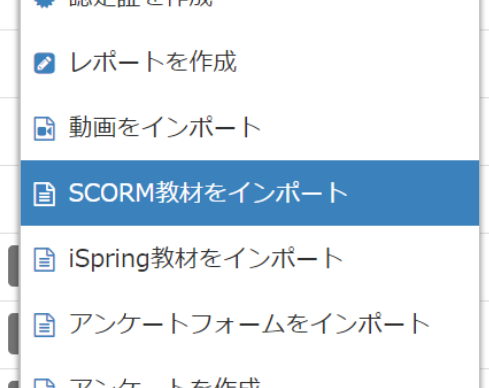
This article describes how to create SCORM teaching materials and put them on learningBOX. Originally, SCORM requires a file called imsmanifext.xml, which defines the structure of the teaching material, but learningBOX can register teaching materials without imsmanifest.xml. However, learningBOX can be used without imsmanifest.xml. What is SCORM? For an overview of SCORM, please refer to What is SCORM? About the Version The version of SCORM is 1.2. Prerequisite Knowledge The student should have some understanding of the JavaScript (ECMAScript) language specification and have the ability to read and understand plain programs. Basic understanding of HTML. Let's implement the API right away! First, create a text file named index.html and copy the following source code. Cautions ・Please make sure that the file name is not index.html.txt, etc. (Hint: display the file extension) It may seem better to use UTF-8 for character encoding, but since the file contains only ASCII characters, the character encoding is unimportant. However, if you want to create proper contents, please specify the character encoding properly. Never use full-width spaces for white space characters. You may indent with half-width spaces or tabs, but never full-width spaces! Never! Let's create an archive! Compress index.html to create a ZIP file. Notes In case of Windows, right-click and do as usual. In case of Mac, please make sure to create a ZIP file compatible with Windows. If you are using Linux, you can do it by yourself. Register the ZIP file in the system Upload the created ZIP file as a SCORM teaching material. Study You have created a teaching material that you can just open and your score will be 99 and your status will be Pass. Congratulations! Development Assignment (Easy) A score of 99 is too good to be true. (Easy) Please make a teaching material that will result in a failing grade. (Standard) Please make a teaching material that records the viewing time. (Standard) Please make an educational material that measures the number of clicks in 5 seconds and send the score. (difficult) Please make a Tetris game that records the score. Hints for Developmental Tasks Check the SCORM specification for the format of the viewing time. Scores are only accepted as strings of integers. Normally, scores are limited to integers 0-100, but learningBOX accepts scores up to 2^31-1.

About the version of learningBOX

This article describes the versions of learningBOX. How to check the version learningBOX has been updated 133 times since its release; as of November 14, 2018, the version is 2.5.2, which can be found in the footer of the service screen. The version number is represented by three numbers, with the first number representing major feature additions, the second number representing additional functionality, and the third number representing bug fixes. About Shared Environment and Dedicated Server Versions When a new version of learningBOX is completed, it is first released to the shared environment. Updates to the dedicated server will then be implemented in response to customer requests. At this time, the version for the shared environment is 2.5.2, but the dedicated server environment may use 2.5.1 or 2.4.3. Dedicated servers are recommended if you are selling educational materials or operating a classroom such as a cram school, because you can adjust maintenance times and upgrade schedules so that they do not interfere with your operations. About version control in the development team LearningBOX uses Git for version control. (All changes are reflected once in the develop branch, and any bugs that are included in the released version are also reflected in the past release branches. branch for defects that are included in the released version. Defects fixed at this time are reflected in the develop branch, and then in the 2.5, 2.4, and 2.3 branches as needed. By updating past release branches, we provide a stable system for dedicated server environments.
thumbnail (i.e. miniature image)

We will exhibit at Kansai IT Solutions Expo in Index Osaka!

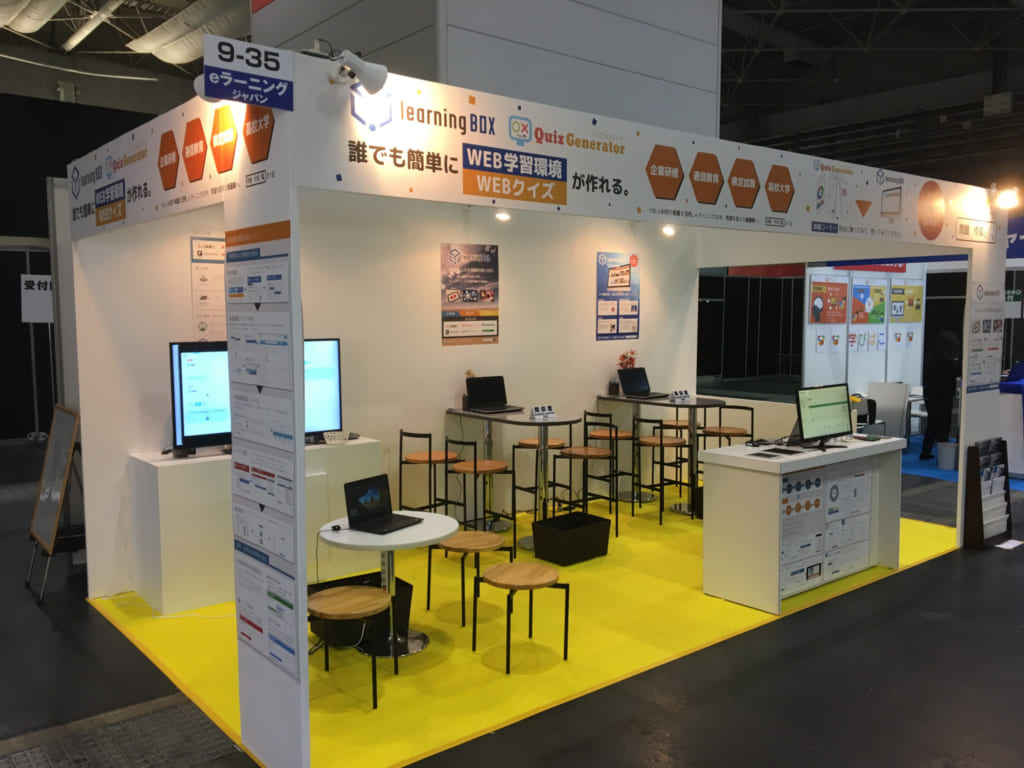
What is EDIX? EDIX is Japan's largest exhibition in the education field, where business support systems, ICT equipment, digital teaching materials, e-learning, and various services for schools are all exhibited under one roof. Many key personnel with the authority to make implementation decisions from universities, boards of education, elementary, junior high, and high schools, cram schools, prep schools, and vocational schools from all over Japan will be in attendance. New Features! EC educational material sales function We will unveil the "EC educational material sales function" at our booth! You can now sell educational materials on the web. This is a must-see feature for those who are considering a new online sales business! About Our Exhibit We will be exhibiting at the Tokyo exhibition in May and at the Osaka exhibition in November as an e-learning booth. Dates: Wednesday, November 7 - Friday, November 9, 2018, 10:00 - 18:00 Location: Index Osaka, Hall 1, Booth 9-35, e-Learning Japan We look forward to seeing you there. Demonstrations and operational consultations will be available during the exhibition! Admission An invitation ticket and two business cards are required to enter the exhibition. Invitation tickets can be ordered here. Each invitation ticket is valid for one person only. (Valid for 3 days during the exhibition period.) If you are planning to visit the exhibition with more than one person, please have enough invitation tickets for each person. Please let us know if you are coming. If you are able to come, please feel free to contact us. Please feel free to contact us if you are interested in coming. Thank you in advance for your cooperation.
Video support for learningBOX

Video materials have become an indispensable part of e-learning. This article explains how to use video materials in learningBOX. Two ways to embed videos in learningBOX There are two main ways to embed videos as learningBOX learning materials. Uploading videos to learningBOX itself Embed videos uploaded to external services such as YouTube and Vimeo in learningBOX. Uploading videos to learningBOX itself Advantages You can accurately record the playback time of videos. You can confirm that you have watched the video without skipping to the end. Videos can be protected based on your learningBOX account. Easy to use as you don't have to use multiple services. There are no advertisements, so you can concentrate on learning. You can change the playback speed. Disadvantages There is a limit of 30 MB per video for the starter plan and 500 MB per video for the standard plan. How to upload videos to external services Advantages High quality videos can be delivered even with the starter plan. Disadvantages Depending on the external service, advertisements may be delivered and you may not be able to concentrate on learning. There may be additional usage fees for external services. You will have to manage your external service and learningBOX account twice. Anyone who knows the URL of the external service may be able to view the videos. Recommended usage If you wish to use videos that have already been published on an external service as teaching materials, it is convenient to embed videos that have already been published on the external service as they are, but if you wish to distribute new videos using learningBOX, we recommend uploading the videos to learningBOX itself. We also hope that you will consider using the Standard Plan when doing so. Security and delivery stability We use Amazon Web Services' Cloud Front to deliver videos from more than 100 edge locations around the world, including the Tokyo region. In addition, a one-time URL with an expiration date is generated for each user at the time of delivery. We are looking for developers! If you are interested in developing functions such as those in the future updates, we are looking forward to your entry.

[Tests and Examinations] How to Use Optional Values

Tests and Examinations] How to Use Optional Values 1. usage scenarios Tests at schools, cram schools, etc. Examination questions for certification tests and qualification tests, etc. Tests at schools, cram schools, etc., and exam questions for certification tests, qualification tests, etc. 2. Sample questions 3. Optional values The sample questions are set with option values that are generally used for testing. Please see the table below for the option values we have set. Option value Set value (unit) Description #mode nomal mode #question_count 10 (number of questions) Maximum number of questions #passing_score 80 (score) Passing score #time_limit 300 (seconds) Time Limit #show_correct_answer false Show correct answer when wrong answer is given #show_instant_result false Show correct/wrong answer for each question #hide_mark_button true Display the mark button #movable true Go to previous/next question #show_seigo_count false Show the number of correct/incorrect answers #messages_passed_title Passed (word) Title of the passed screen #messages_failed_title Failed (word) Title of failed screen In addition, there are various optional values such as "#time_limit_mode (time limit setting for each question)," "#partial_score (partial score function)," and "#suspendable (suspend and resume function)," which can be combined to create original teaching materials. You can create your own original teaching materials by combining them. Please click here for other optional values. 4. Easy Setup with Templates! This template file describes the above option values. By importing or editing the template file, you can easily create test questions. Web Form Please download the attached file (text) and import the file into LearningBOX. Please create your own questions with the option values set. ▼Text (.txt) Please download the attached file (text) and use it. ▼Excel (.xlsx) Please download and use the attached Excel (.xlsx) file. Related URL:Section