How to create a quiz
With QuizGenerator, anyone can easily create quizzes.
Create a quiz
QuizGenerator makes it easy for anyone to create quizzes.
It is also possible to embed the created quiz in your website.
In addition, learners can manage their grades by registering in the learningBOX.
What you can do by creating ▼Quiz
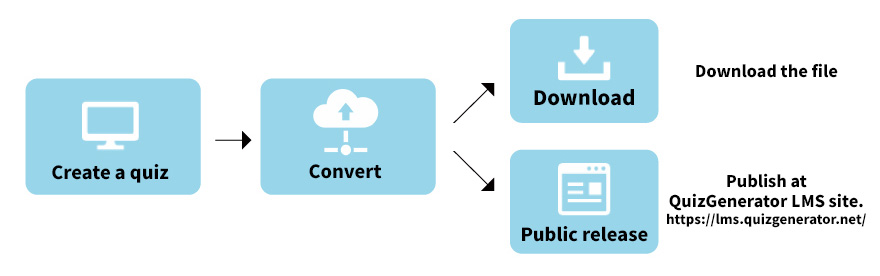
Two Ways to Create Quizzes
Text
Utilize and create quiz drafts

See more
Excel
Recommended for batch creation
See more
How to create a quiz
- Create with Excel
- Create with text
Excel makes it easier to create a large number of quizzes.
Composition of the Excel input
Download the Excel template file
Click the button below to download the Excel template file.
Japanese: format English: format
This section explains how to create and register a batch of questions using a template file.
Excel file
Download and open the above template.
Excel > > Option Settings
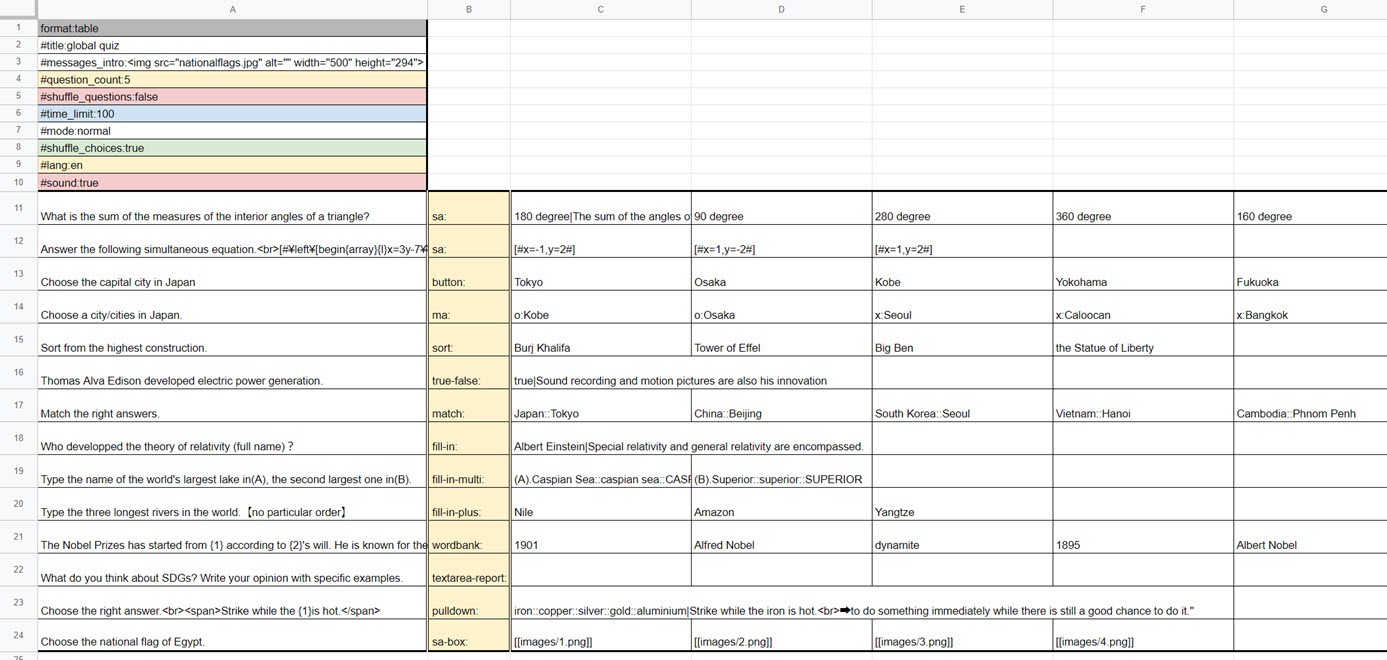
For optional settings, quizzes can be created for various usage scenarios, such as "Randomize questions from 100 questions," "Do not judge right or wrong until all questions are answered," "Set overall time limit," "Set time attack for each question," and so on.
There are more than 30 optional items, so you can create your own original quiz.
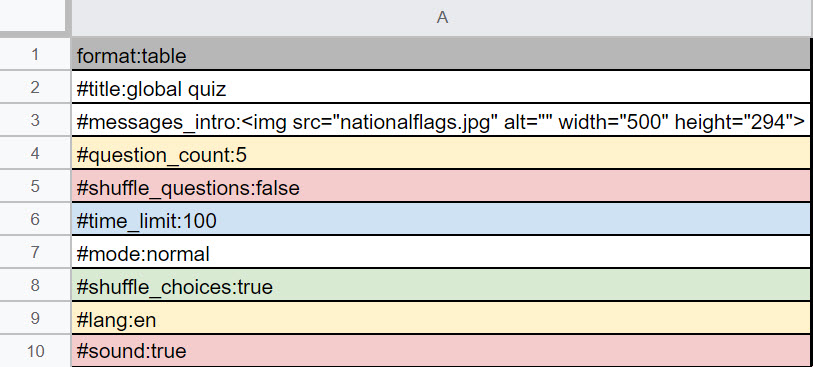
For more information about options, refer to Option Settings.
Excel > > Creating questions
This is the section for entering questions.
Write the question text in column A and the question format in column B.
From column C, correct and incorrect answers are listed.

Direction
Setting the option value
Enter the name of the quiz you are creating in the Title and Message Intro on the second and third lines of the Excel template.

Question Entry
Add the question to the blank line at the bottom.
This time, as an example, we will add a choice question.

1. Enter the problem statement in A. ⇒Choose the English description of the apple.
2. Enter the question type in B (e.g., multiple choice) => sa:
3. Enter the correct answer in C. ⇒ apple4. put a vertical bar in C and enter an explanation. ⇒ apple|The correct answer is apple.
5. enter wrong answers in D and E. ⇒ orange peach

Now it's complete!
Next, we will convert this Excel into a quiz application and publish it on the web.
Please refer to [Publish to the Web] in the tab directly below this page.
Detailed instructions on how to use the system
Please refer to the following page.
Use your manuscript
Create with text
Download text file template
Click the button below to download the text file template.
Japanese: format English: format
This section explains how to create and register a batch of questions using a template file.
Contents of text file
When you open the text file, you will find the following information.
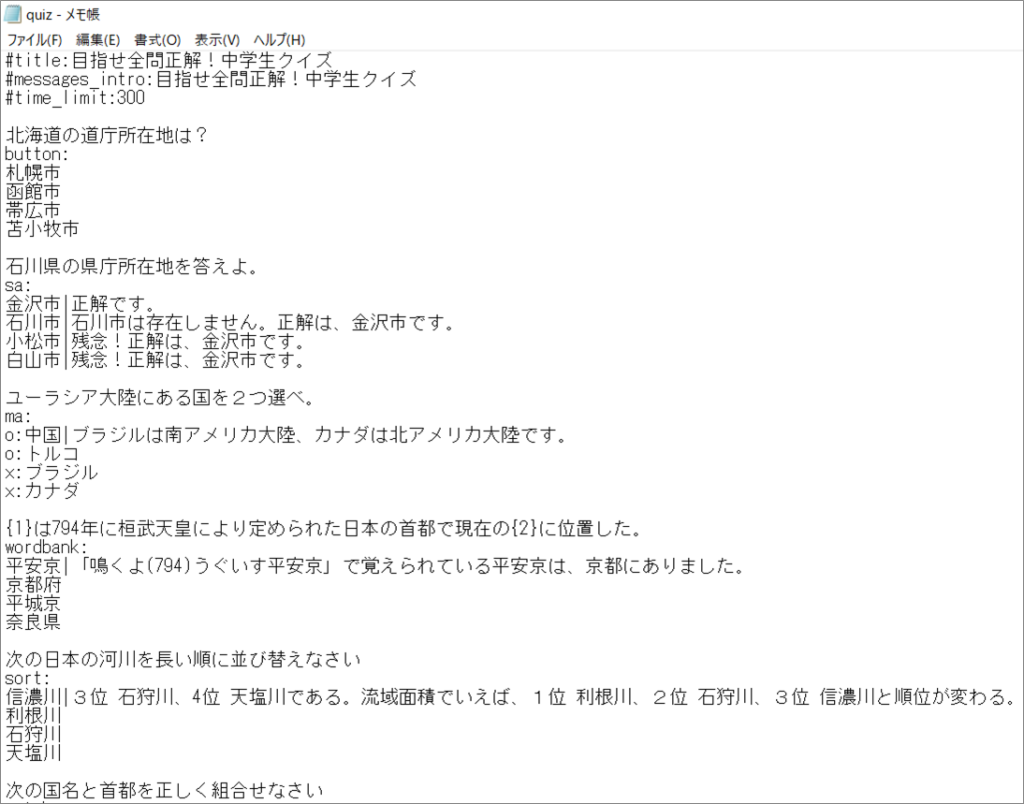
Text File >> Option Settings
For optional settings, quizzes can be created for various usage scenarios, such as "Randomize questions from 100 questions," "Do not judge right or wrong until all questions are answered," "Set overall time limit," "Set time attack for each question," and so on.
There are more than 30 optional items, so you can create your own original quiz.
The option value location should be at the beginning of the text.

Text File >> Create Question
- Quiz sentence
- Quiz format
- Quiz
- newline (e.g. LF, CR, CRLF)
The questions will be developed in the above order.
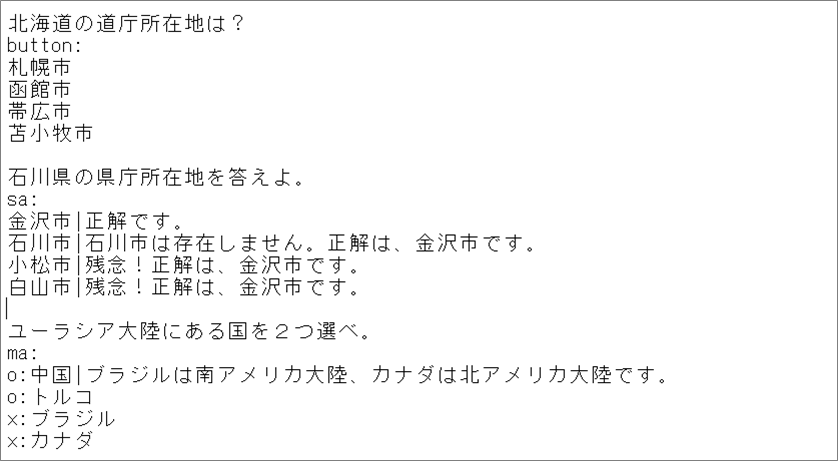
Direction
Setting the option value
Enter the name of the quiz you are creating for the title and message intro.
Question Entry
We will add the problem at the bottom.
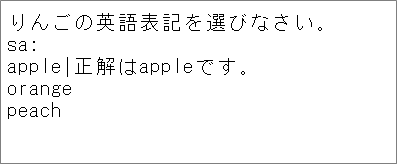
This time, as an example, we will add a choice question.
1. enter a problem statement. ⇒Choose the English description of the apple.
2. enter the question format on a new line (e.g., multiple-choice question). ⇒ sa:
3. break the line further and enter the correct answer. ⇒ apple
4. without a line break, insert a vertical bar and enter an explanation. ⇒ apple|The correct answer is apple.
5. enter a wrong answer for each new line. ⇒ orange peach
Next, we will convert this text into a quiz application and publish it on the web. See 【Publish on the Web】 on the tab directly below this page.
Detailed instructions on how to use the system
Please refer to the following page.
Create Quiz with Text
- Publish by conversion tools
- Publish on learningBOX
Published by Conversion Tool
The created question draft file can be converted to a quiz using the conversion tool.
Conversion tool
Click on the "Conversion Tool" button below.
Upload the file to be converted
The following columns are available.
Click on File Selection here, select the issue manuscript file (zip, xlsx, txt, tsv) you wish to convert this time, and click Convert.

Screenshot of the conversion tool page
Successful conversion > > Publish to the Web
If successed, the following screen will be displayed.
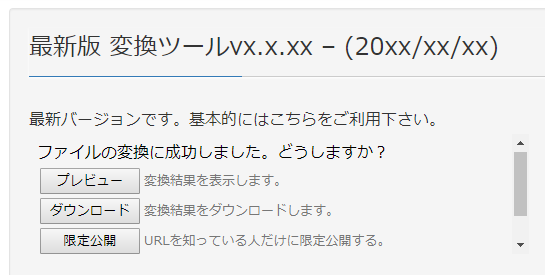
Screenshot of successful conversion
The meaning of each button is as follows
Preview >> You can check the operation.
Download >> You can download HTML/CSS/JS files after quiz app conversion.
Limited Publication >> The quiz will be published on the Web, but will not appear on the Public Quiz List page.
Published on learningBOX
When you register an account in learningBOX, if you are an "Administrator/Grades Management Authorization Holder,
You can see which public issues have been studied by the users under your control.
Register a new account at learningBOX
Register for a new learningBOX account
Upload your quiz on the content management screen
When you log in to learningBOX, you will see the following screen.
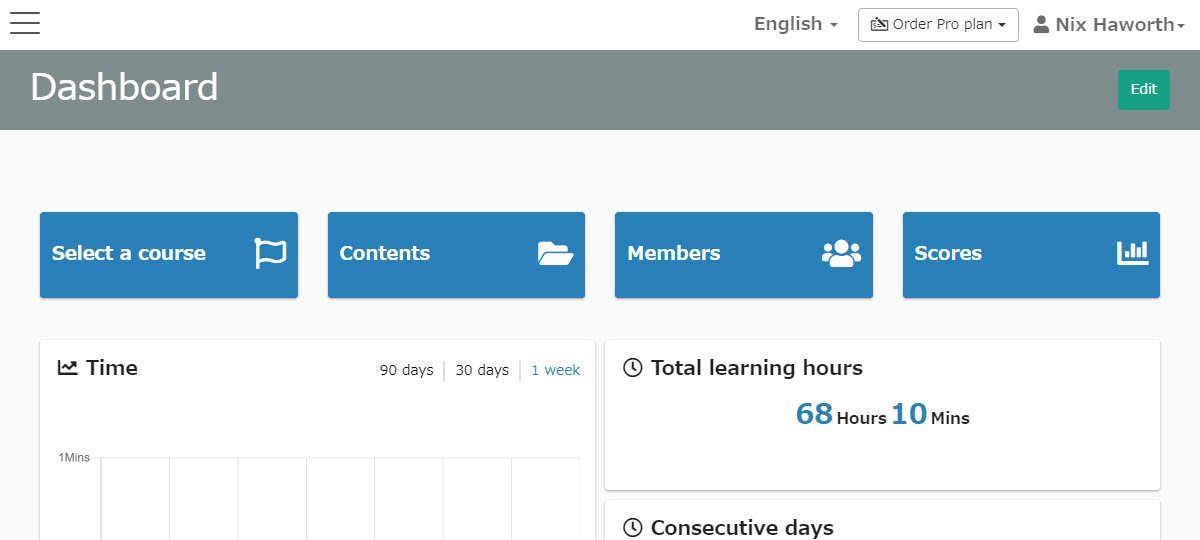
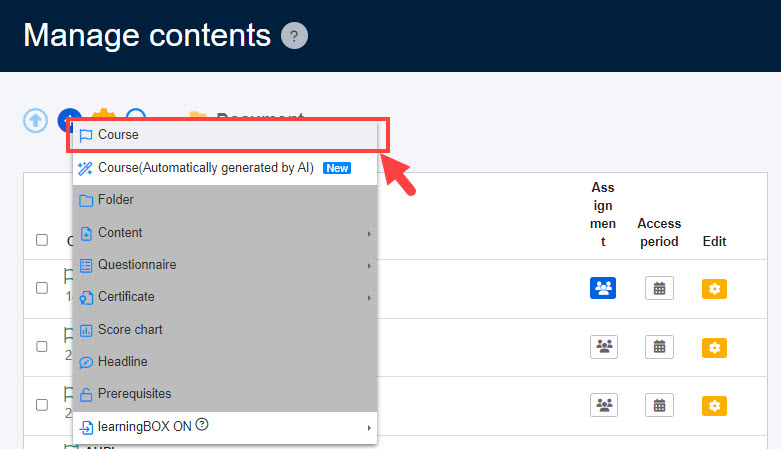
Open the Content Management screen and click on the "+" icon in the upper left corner.
First, create a course.
*About creating a course,Courses/Foldersfor more information.
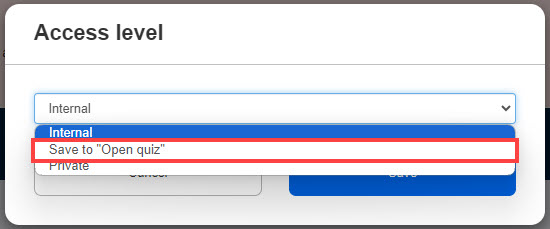
Make content available to the public
In Content Management, right-click the content you wish to make publicly available and select "Restrict Publication.
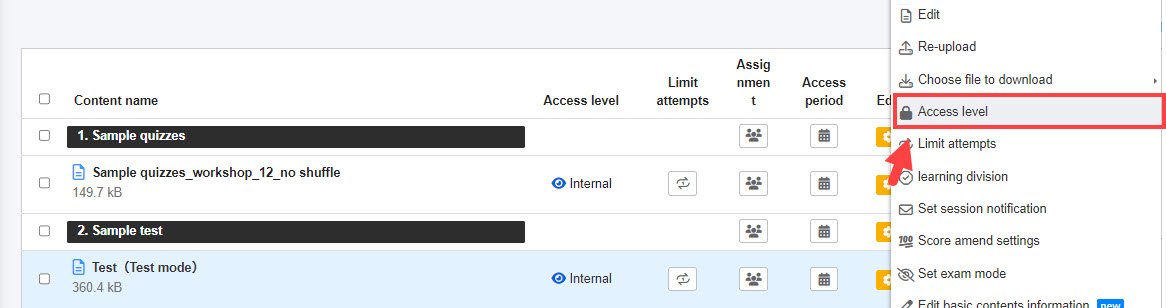
Please set the publication restriction to "Public".
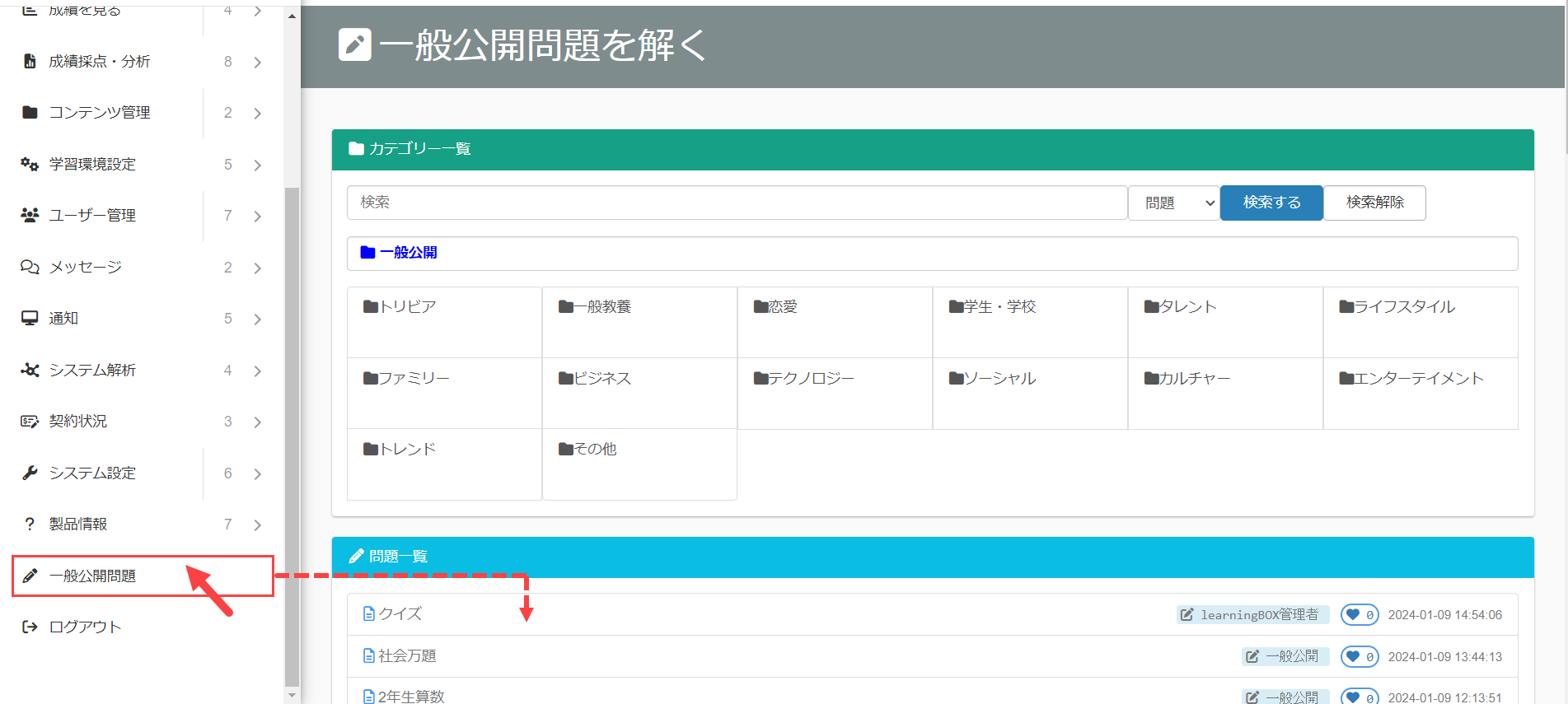
Go to "Open quizzes (JPN only)" from the sidebar.
Click on the quiz you have created.
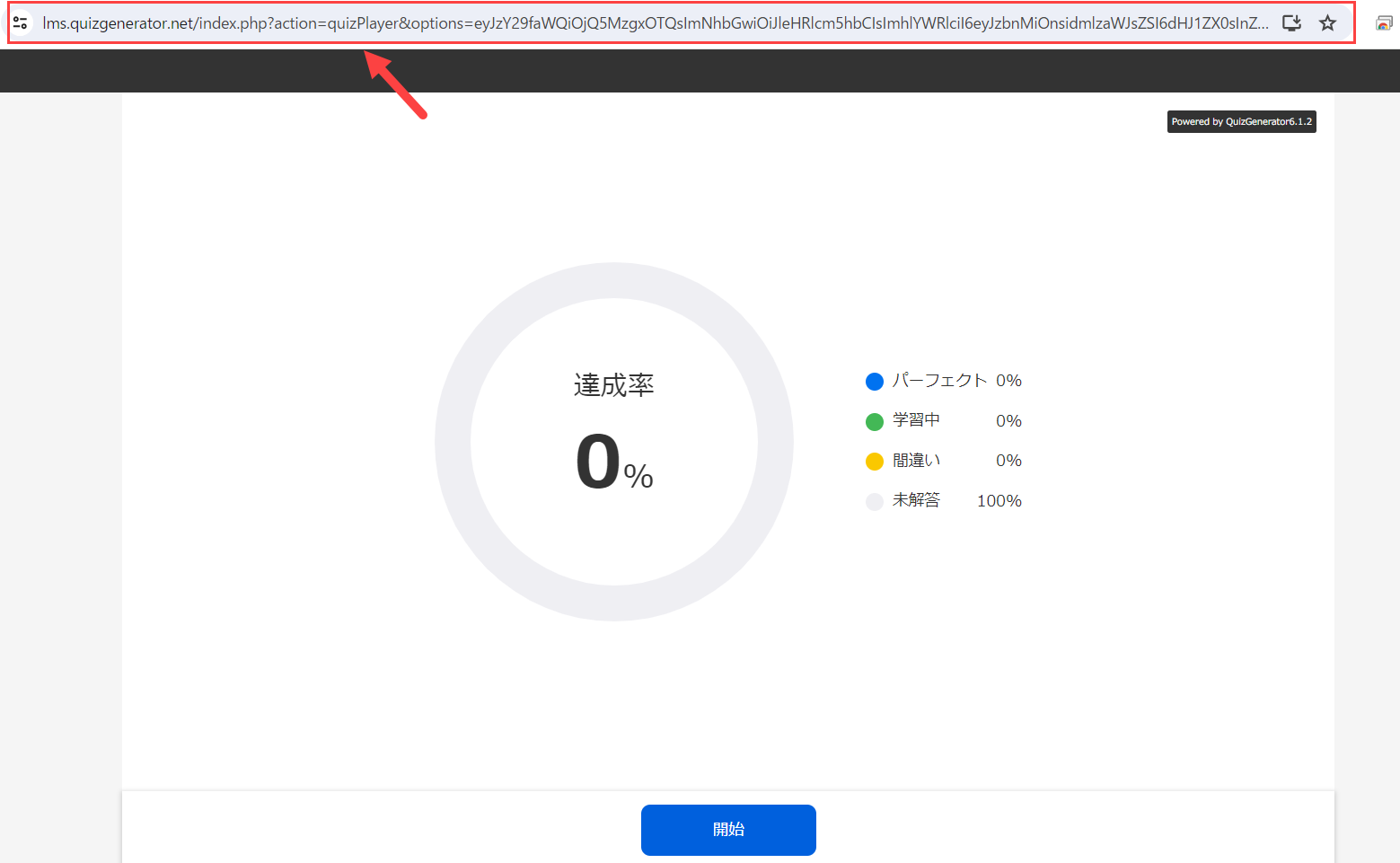
Copy the URL of the quiz displayed.
Feel free to use it for your needs.